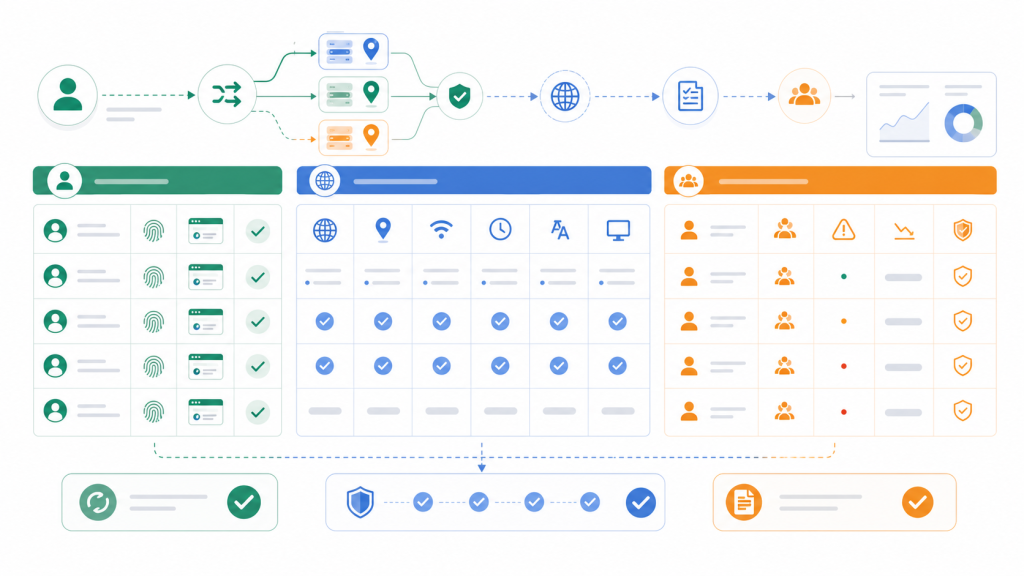
Fingerprint browser selection often starts with a simple question: how many profiles or windows can the tool open? That question is understandable, but it is not enough for a team. Window count tells you how much the interface can display. It does not tell you whether account context stays consistent, whether proxy changes are reviewable, whether a teammate can understand what happened last week, or whether automation failures can be diagnosed without guesswork.
For individual use, opening more isolated profiles may feel like the whole job. For team operations, the selection standard is different. A fingerprint browser becomes part of an account workflow: profiles need owners, proxies need rules, sessions need continuity, tasks need logs, and automation needs human review before it touches sensitive accounts.
This guide gives teams a practical selection framework. It does not rank tools or make unsupported claims about competitors. Instead, it explains what to test before choosing a fingerprint browser for multi-account work, and where an account-environment workspace changes the evaluation.
Why window count is a weak selection metric
Window count is easy to compare because it is visible. A tool can say it supports many profiles, and a buyer can quickly understand the number. The problem is that profile volume is only one layer of the workflow.
A team also needs answers to operational questions:
- Can each browser profile keep fingerprint, proxy, cookies, session state, timezone, language, and extension context together?
- Can a teammate tell which account environment was used for a task?
- Can the team review what an automation did before deciding whether to repeat it?
- Can proxy changes be checked before they affect login behavior?
- Can failed tasks be explained from logs, screenshots, and account context?
If the answer is unclear, a larger profile count may only make the workflow harder to control. A team does not simply need more windows. It needs account environments that can be assigned, reviewed, reused, and audited.
The decision table: what teams should compare instead
| Selection area | Weak question | Better team question | What to test |
|---|---|---|---|
| Profile capacity | How many windows can it open? | Can profiles stay organized by account, owner, task, and status? | Create a sample workspace with real naming, ownership, and review states. |
| Fingerprint context | Does it mask fingerprints? | Can fingerprint, device, timezone, language, and browser state remain consistent? | Run a controlled fingerprint environment check before and after task changes. |
| Proxy binding | Can it use proxies? | Can proxy changes be tied to the right profile and reviewed before use? | Change proxy settings in a test profile and check location, timezone, language, and login behavior. |
| Automation | Does it automate tasks? | Can automation run inside the correct account context with reviewable evidence? | Use a small task and verify screenshots, steps, output, and failure reasons. |
| Team handoff | Can multiple people log in? | Can one teammate understand another teammate’s account workflow without rework? | Run a handoff test between two users and record what information is missing. |
| Failure diagnosis | Does it work most of the time? | When it fails, can the team explain whether the cause was profile, proxy, session, task, or human approval? | Review logs and screenshots after one intentional failed task. |
This table is the core difference between a personal multi-open tool and a team workflow tool. The first is judged by how many profiles it can launch. The second is judged by how clearly it preserves and explains account context.
Profile management should include ownership and status
A browser profile is not just a browser window with a different fingerprint. In team use, it becomes the container for an account’s operating context. That context includes the assigned user, account purpose, proxy rules, session state, task history, and current risk level.
Before choosing a tool, create a sample profile structure and test whether the team can maintain it for a week. At minimum, each test profile should answer:
- Who owns this profile?
- Which account or account group does it support?
- Which proxy and region rules apply?
- What task was last completed?
- What should the next teammate avoid changing?
If those answers live in separate spreadsheets, chat messages, and memory, the browser tool may not be solving the team’s real problem. A stronger evaluation uses a browser profile handoff test before committing to a larger rollout.
Automation should be judged by reviewability
Automation is useful only when the team can understand what it did. For multi-account work, the question is not simply whether an AI or script can click through a page. The question is whether the task ran inside the correct account environment and left enough evidence for a human to review.
When evaluating automation, test a small repeatable task with an AI browser agent or a workflow runner. Then check whether the team can see:
- which profile was used;
- which proxy and session context were active;
- which page steps were completed;
- where the task paused or failed;
- which screenshot or log can support the next decision.
This is why reviewability matters more than a demo that only shows a task finishing once. If a task fails after a proxy change, login prompt, region mismatch, or page variation, the team needs enough evidence to diagnose it. Existing browser automation logs are a useful model for what should be captured.
A 7-day pilot checklist for fingerprint browser selection
Before buying or migrating at scale, run a small pilot. Seven days is usually enough to reveal whether the tool supports real team behavior or only looks good in a short demo.
- Create 5 to 10 profiles that represent real account categories.
- Assign owners, proxy rules, task labels, and review status to each profile.
- Run one manual workflow, one assisted workflow, and one automation workflow.
- Change a proxy in one test profile and verify fingerprint, timezone, language, and login behavior.
- Hand one profile from one teammate to another and record missing context.
- Intentionally fail one automation task and check whether logs explain the cause.
- Review whether the team can repeat the workflow without asking the original operator for hidden knowledge.
The pilot should end with a concrete answer: can this tool preserve account context across people, proxies, sessions, and tasks? If the answer is no, profile volume alone will not fix the workflow.
Where Web4 fits in the selection framework
Web4 Browser is most relevant when the team’s real problem is not opening more windows, but making account-context execution reviewable. Its role is to bring browser profiles, proxy binding, fingerprint context, task logs, screenshots, AI task execution, and human review into the same workflow.
That does not mean every team needs the same setup. A solo user with a few simple profiles may only need basic profile isolation. A team handling repeated account tasks, handoffs, proxy changes, and automation needs a stricter standard. In that case, selection should focus on whether the browser environment can explain what happened, not only whether it can launch another profile.
Conclusion: choose for workflow control, not profile volume
The practical rule is simple: use window count as an early filter, not the final decision. A fingerprint browser for team work should be evaluated by context control, proxy consistency, handoff quality, automation review, and failure diagnosis.
If a tool can open many profiles but cannot help the team explain which environment ran which task, it may create more operational debt. If it can keep account context visible and reviewable, it becomes more than a multi-open browser. It becomes part of the team’s operating system for multi-account work.