When comparing the Best Antidetect Browsers in 2026, a short demonstration may not reveal how well a product handles repeated account use. Problems often appear when the same account must be reopened the next day, transferred to another operator, or connected to an automation script.
For cross-border e-commerce sellers, advertising teams, affiliate marketers, and other multi-account operators, the number of available profiles is only one part of the decision. The browser must also preserve the relationship between an account, its environment, proxy, login state, assigned operator, and operating process.
The eight tools below approach these requirements differently. Some emphasize visible bulk operations, some make profiles easier to access across devices, and others provide deeper API control. The right choice depends on the capabilities your workflow actually requires.
Browser profiles should only be used for legitimate and authorized account management. Environment isolation does not override platform policies, account rules, or applicable laws.
What Is an Antidetect Browser?
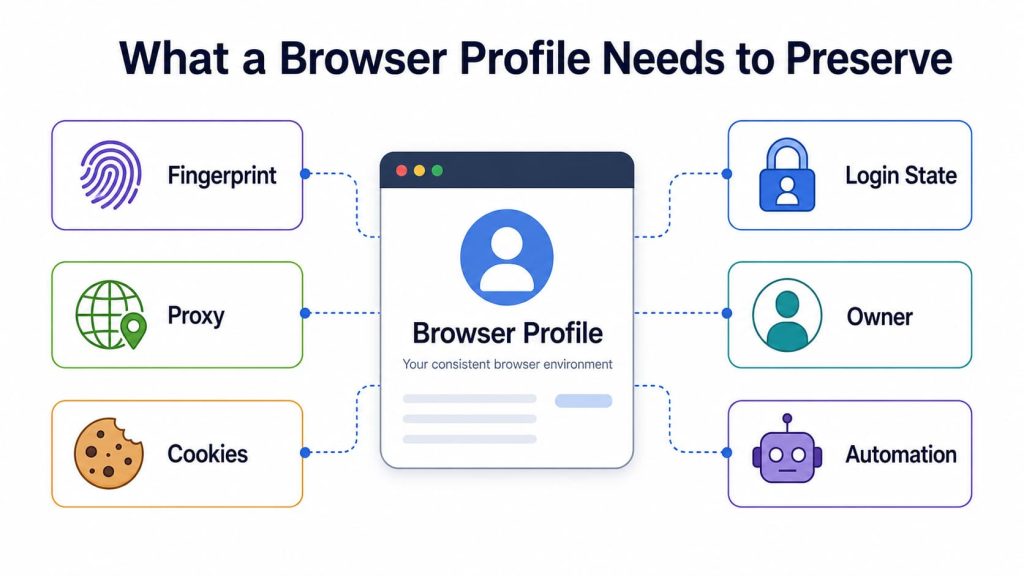
An antidetect browser creates separate browser environments for different accounts or projects. Each environment can maintain its own browser fingerprint settings, cookies, local storage, proxy connection, extensions, and login state.
Unlike a standard browser profile, an antidetect browser usually provides more control over parameters such as Canvas, WebGL, AudioContext, fonts, language, time zone, operating system signals, and screen resolution. A proxy can also be assigned to each environment so that the browser settings and network location can be managed together.
These tools are commonly used when authorized accounts need to remain separated, organized, and accessible across repeated sessions. Team-oriented products may also add profile sharing, permissions, activity records, bulk management, and automation through APIs, CDP, Selenium, Puppeteer, or Playwright.
An antidetect browser does not make an account invisible or guarantee that platforms will never connect related activity. Account history, proxy quality, browser configuration, user behavior, and platform policies still affect how a session is evaluated.
Web4 Browser
Strong fit when: A team wants locally managed browser environments, visible manual operation, organized proxy assignments, and a path to CDP-based automation.
A Web4 Browser environment keeps fingerprint settings, cookies, website data, local storage, login state, and its assigned proxy within the same working context. Its isolated browser environments allow Canvas, WebGL, AudioContext, fonts, language, time zone, screen resolution, and other browser parameters to be configured separately.
Basic profile data is stored on the local device by default. Environments can be created in bulk, cloned, copied from templates, imported, exported, grouped, tagged, and annotated by platform, country, project, business type, or responsible operator.
HTTP, HTTPS, and SOCKS5 proxies can be assigned to individual environments. The proxy management workflow connects those assignments with accounts, regions, projects, and owners rather than leaving the relationships in a separate spreadsheet.
Profiles support normal manual operation and can expose a CDP port for Selenium, Puppeteer, Playwright, and other compatible tools. AI and headless execution can extend the workflow, including background tasks and visual takeover when review is required, but basic profile, proxy, and manual browser operations do not depend on them.
What to verify: Reopen the environment and confirm that its stored state and assigned proxy remain consistent. When automation is required, connect through CDP and check that the same environment remains available for manual review. Profile isolation does not replace consistent network settings, responsible operation, or platform compliance.
AdsPower
Strong fit when: An operations team needs bulk profile management, synchronized browser actions, visual automation, and Local API access.
AdsPower profiles can retain fingerprint settings, cookies, local data, extensions, account information, and proxy configurations. Profiles can be created in bulk, cloned, imported, exported, grouped, tagged, and searched.
These organization tools suit operations spread across clients, countries, advertising platforms, stores, or account owners. Profile groups and member groups also help restrict which environments each member can access.
Several automation methods are available. The Synchronizer reproduces mouse and keyboard actions across multiple visible browser windows. RPA workflows cover repeatable visual tasks, while the Local API connects profiles with Selenium, Puppeteer, Playwright, and internal systems.
The Synchronizer currently works with Chromium-based SunBrowser profiles on Windows and macOS rather than every browser engine and operating system.
Before choosing it: Check which profile limits, member permissions, operation records, RPA functions, Synchronizer capabilities, and API features are included in the intended subscription. A free plan may be sufficient for reviewing the interface without representing the complete team workflow.
Dolphin Anty
Strong fit when: Advertising or affiliate operations rely on visible browser profiles and want to connect local environments to automation frameworks.
Dolphin Anty profiles can retain fingerprint settings, cookies, proxy configurations, extensions, browser data, and account information. Groups and labels help organize profiles by campaign, client, region, platform, or account type.
Shared access supports teams whose daily work is divided among media buyers, account operators, and campaign managers.
The product also provides a Local API. Profiles can be launched with DevTools Protocol enabled and connected to Selenium, Puppeteer, Playwright, or another CDP-compatible tool. Supported profiles may also run headlessly.
This automation model depends on the local Dolphin Anty application. The application must remain running and authorized, and API requests are sent from the device where the browser operates.
During evaluation: Review the local-client requirement, supported profile operations, session persistence, concurrent profile behavior, headless execution, and plan limits. Check whether an automated session can later be opened and inspected manually when human review is required.
GoLogin
Strong fit when: Individuals or distributed teams value cloud-saved profiles and need to reopen the same environment from another supported device.
A GoLogin profile can retain fingerprint settings, cookies, local storage, browsing history, extensions, proxy details, and other account context. Its cloud-oriented model allows an authorized user to reopen a saved profile on another computer with GoLogin installed.
This reduces the need to copy browser data manually when operators move between devices. Profiles can also be shared through team workspaces.
GoLogin provides integrated proxy options while allowing third-party proxies to be added. Its API supports programmatic profile management and browser launches, while supported cloud-browser connections can work with automation frameworks.
Cloud synchronization is useful when profile portability matters. Teams that prioritize local data storage or workstation-level control may evaluate the same model differently.
What to check: Open the profile from a second authorized device and confirm that cookies, login state, extensions, proxy settings, and permissions behave as expected. Review who can access or modify cloud-synchronized profile data.
Incogniton
Strong fit when: A team needs persistent isolated profiles, role-based sharing, synchronized visible actions, and API or SDK integration.
Incogniton profiles separate fingerprint settings, cookies, local storage, browsing state, and proxy configurations. Profiles can be reopened without mixing their account data with other environments.
Role-based access allows profiles to be shared among authorized members. Cloud synchronization can make profile data available when work moves between operators or devices.
The Profile Synchronizer reproduces actions across multiple open profiles. It can support repetitive work when browser windows, page layouts, and account states remain sufficiently similar.
For developers, Incogniton provides REST API and SDK integrations. Selenium, Puppeteer, and Playwright can connect to persistent profiles so scripts operate within saved browser environments.
The Synchronizer has practical visual requirements. Browser windows may need matching dimensions for actions to reproduce reliably.
Before committing: Run the Synchronizer with the operating system, browser window dimensions, page layouts, and number of profiles the team expects to use. Confirm that the preferred framework, SDK, and collaboration features are included in the intended subscription.
MoreLogin
Strong fit when: An organization may need browser profiles, synchronized desktop actions, developer access, and Android cloud-phone environments within the same product family.
MoreLogin browser profiles can retain fingerprint settings, cookies, proxy information, browser data, account details, tags, and group assignments. These fields help organize environments by platform, project, country, or operator.
Its browser Synchronizer reproduces actions across several visible profile windows. The Local API can launch browser profiles for programmatic automation and return the debugging information required by supported integrations. MoreLogin has also introduced Commander for instruction-driven tasks across browser profiles and cloud phones. Because Commander is a newer feature, confirm its current availability and plan coverage before including it in a production workflow.
MoreLogin also provides cloud-phone environments for Android applications. Its documented RPA capabilities are primarily associated with cloud-phone tasks, including mobile automation templates and related workflow controls.
Browser-profile automation and Android cloud-phone RPA are different operating models. A workflow that runs inside desktop websites should not be evaluated in the same way as one that depends on Android applications.
What to confirm: Decide whether the work takes place in browser profiles, Android cloud phones, or both. Then review the Synchronizer, Local API, cloud-phone RPA, member permissions, client requirements, and capacity included in the relevant plan.
Multilogin
Strong fit when: A structured team needs persistent browser environments, defined workspace roles, and several developer automation interfaces.
Multilogin browser profiles preserve fingerprints, cookies, session data, local storage, extensions, and proxy settings. Profiles are managed inside workspaces so authorized members can continue using the same browser context.
Workspace roles separate responsibilities among owners, managers, operators, and users with more restricted access. This arrangement suits organizations where administrators, team leads, account operators, and developers should not receive identical control.
Multilogin supports Selenium, Puppeteer, and Playwright, along with API, command-line, and Postman-based workflows. These interfaces connect profile management and browser execution with internal systems.
Some automation paths still depend on a running local application or a particular launch method. A framework example demonstrates that a connection is possible, but it does not automatically confirm that every profile operation can run remotely.
Multilogin also distinguishes browser profiles from Android cloud phones. These environment types serve different website and mobile-application workflows.
During comparison: Test the exact browser-profile or Android cloud-phone workflow the team intends to use. Do not assume that they share the same lifecycle, permissions, data model, or automation method.
Octo Browser
Strong fit when: A developer-led team needs detailed API control over profiles, proxies, folders, tags, permissions, and browser execution.
Persistent Octo Browser profiles can contain fingerprint settings, cookies, extensions, proxy configurations, tags, and folder assignments. Folders and tags help separate environments by project, country, client, platform, or operating stage.
Team permissions can be defined for profiles, proxies, tasks, tags, folders, and administrative actions. Developers, operators, and managers can therefore receive different levels of control.
Octo Browser’s API supports profile creation, editing, deletion, launching, proxy assignment, tags, folders, and related lifecycle operations. Running profiles can be connected to Playwright, Puppeteer, Selenium, and other CDP-compatible tools.
The product also supports one-time profiles for disposable, authorized research, quality assurance, or automation tasks.
Persistent profiles and one-time profiles solve different needs. A disposable environment does not demonstrate whether a long-lived account will retain cookies, login state, ownership records, and later manual accessibility.
What to establish first: Determine whether the workflow needs persistent account environments, disposable automation sessions, or both. Confirm that the required API functions, permissions, and profile types are available in the intended plan.
Match Each Product to Your Actual Requirements
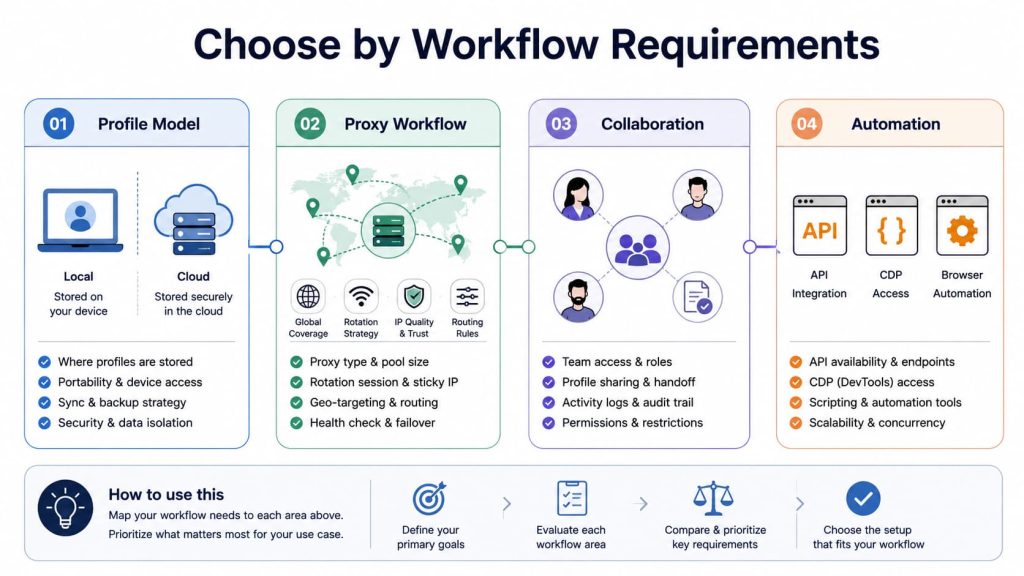
Similar feature labels do not mean every product will fit the same working model. The useful comparison is how each tool supports the profile, proxy, collaboration, and automation requirements that matter to the work.
Choose a profile model that preserves the account context you need
A browser environment may need to retain:
- fingerprint settings;
- cookies and local storage;
- extensions;
- proxy assignments;
- language, time zone, and location choices;
- account notes and ownership;
- access permissions;
- automation connections.
Cloud-oriented profile storage may suit teams that frequently move environments between devices. Locally managed profiles may be more appropriate when direct workstation access and local data control are priorities.
The right choice depends on where the data should remain, who must access it, and how the same account will be reopened later.
Choose a proxy workflow that remains easy to manage
Supporting HTTP, HTTPS, or SOCKS5 proxies is only the starting point. A useful proxy workflow should also make it easy to understand:
- which proxy belongs to each profile;
- which country, region, or project it serves;
- whether language and time-zone settings match the intended region;
- who changed the proxy;
- how expired endpoints are replaced;
- whether manual and automated launches use the same proxy.
Verify the observed IP, country, language, time zone, DNS behavior, and WebRTC result inside the launched browser. Products that keep these relationships visible may be easier to manage as the number of environments grows.
Choose collaboration features according to how work is handed over
An individual operator may only need profile organization and saved sessions. A larger team may also require role-based permissions, ownership fields, activity records, and controlled profile sharing.
During a trial, give another authorized operator the minimum access required for one task. Check whether that person can identify the correct profile, verify its proxy and login state, complete the task, and record the result.
A product may be a better fit when the handoff can be completed without shared master credentials, undocumented setup details, or several external spreadsheets.
Choose an automation method that matches the task
Automation support may refer to:
- synchronized manual actions;
- visual RPA;
- a Local API;
- a remote API;
- CDP access;
- Selenium;
- Puppeteer;
- Playwright;
- headless browser execution.
A team performing repetitive visible actions may prefer a Synchronizer or visual RPA tool. A developer-led workflow may need broader profile lifecycle APIs and browser-framework access. Teams combining scripts with human review may prioritize products that keep automated sessions connected to visible profiles.
The more suitable product is the one whose automation model matches the actual task—not necessarily the one that lists the greatest number of framework names.
Compare the Same Core Workflow Across All Eight Browsers
Use authorized test accounts and equivalent proxy resources so each product can be compared against the workflow the team actually intends to run.
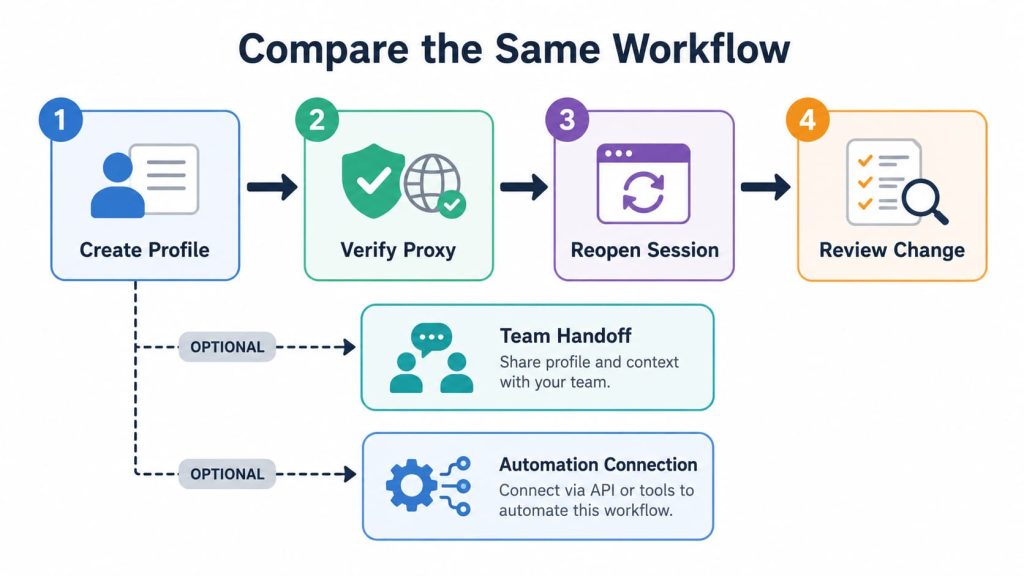
1. Create and identify the environment
Create one profile for each test account. Record its project, platform, country, owner, and purpose.
What good support looks like: Another user can identify the environment without asking its creator.
What to check: Important account context still has to be stored in a separate spreadsheet or private message.
2. Verify the proxy from inside the browser
Assign the intended proxy and record:
- observed IP;
- country and region;
- proxy protocol;
- language;
- time zone;
- DNS result;
- WebRTC result.
What good support looks like: The browser and network settings match the intended account context.
What to check: The management interface reports a working proxy, but the launched browser produces an unexplained network or regional mismatch.
3. Close and reopen the saved session
Log in to an authorized test account, complete a normal task, close the profile, and reopen it later.
What good support looks like: The expected cookies, login state, extensions, browser settings, and account notes remain available.
What to check: The environment reopens, but important session or organizational data must be restored manually.
4. Repeat after one controlled change
Change one non-critical setting, such as the assigned owner, profile group, label, or test proxy. Then reopen the environment.
What good support looks like: The change is visible, understandable, and easy to reverse.
What to check: The team cannot determine which configuration is current or how the change affects the account environment.
For team workflows: transfer the profile
Give another authorized member the minimum access required.
Compare how easily that person can locate the profile, understand its account context, verify the proxy, continue the task, and record what was completed.
For automated workflows: connect the intended automation method
Test the Synchronizer, RPA workflow, API, CDP connection, Selenium, Puppeteer, Playwright, or headless mode that the team expects to use.
Compare whether automation uses the intended profile state and proxy and whether the resulting session can still be inspected manually when required.
Choose the Product That Best Matches Your Workflow
A public fingerprint score can reveal configuration inconsistencies, while a free plan can help evaluate the interface. Neither determines whether a product matches the way an account will actually be operated.
Choose the browser whose profile storage, proxy mapping, collaboration controls, and automation path match the requirements you plan to use. Features that do not support that workflow add complexity rather than practical value.