
When you visit a website, the site receives more information than the page address you opened.
Most people already know about IP addresses and cookies. What is less obvious is that the browser itself also reveals many small details: which browser you use, what operating system it appears to run on, your preferred language, screen settings, timezone, graphics capabilities, and more.
None of these details is a browser fingerprint by itself.
Think of them as small clues.
Knowing that a visitor uses Chrome tells a website very little. Knowing that the browser appears to be Chrome on Windows, uses a particular language and timezone, has certain screen characteristics, and produces a particular graphics result gives the website a much more specific pattern.
That pattern is what browser fingerprinting is built around.
The important question is not whether one browser setting looks unusual. It is what the signals reveal when they are considered together.
What Is a Browser Fingerprint?
A browser fingerprint is the pattern created by information your browser exposes to a website.
That information can include:
- browser type and version
- operating system
- language
- timezone
- screen size
- fonts
- graphics capabilities
- Canvas and WebGL results
- supported browser features
According to MDN’s explanation of browser fingerprinting, websites can identify a browser by combining characteristics such as its version, timezone, language, fonts, settings, and display information.
A browser fingerprint does not automatically reveal your real-world identity.
It does not mean a website suddenly knows your name, email address, or who owns the computer. It is better understood as a technical pattern that can help distinguish one browser environment from another.
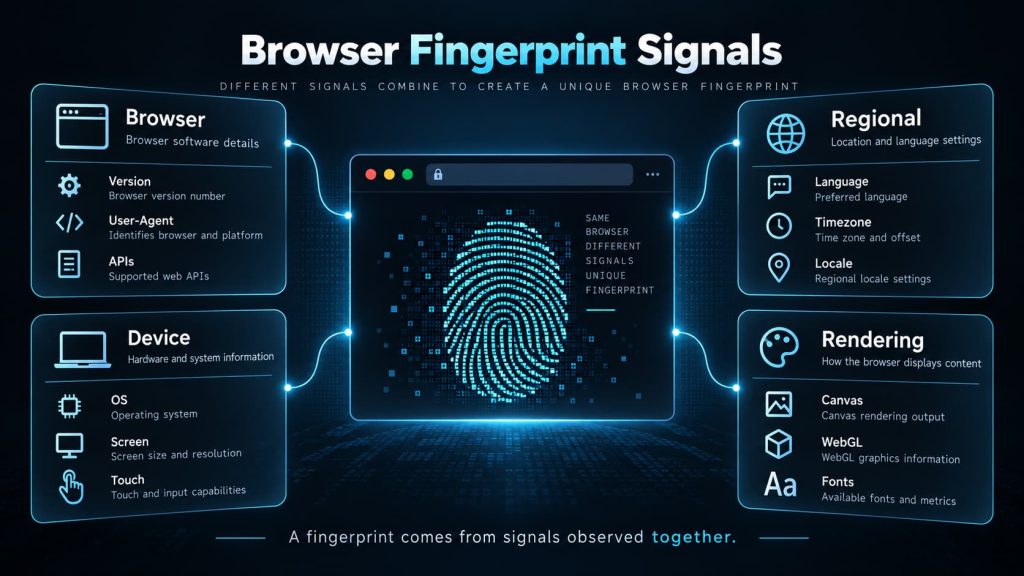
What Can Websites See?
You do not need to memorize every possible fingerprinting signal.
Most of them answer four simple questions:
What browser is running?
What kind of device does it appear to be running on?
What regional settings does it use?
How does it render and process content?
Different fingerprinting systems may use different signals, but many commonly discussed ones fall into these groups.
Browser Signals
A website can learn information about the browser itself, including:
- browser family
- browser version
- User-Agent information
- supported web APIs
- enabled browser features
- JavaScript behavior
- supported media formats
These values help describe what browser appears to be running and what it can do.
They are also related.
For example, a browser claiming to be a particular Chrome version would normally be expected to support features associated with that version.
Device and Display Signals
The browser may also expose information related to the device around it, including:
- operating system or platform
- screen resolution
- color depth
- device pixel ratio
- touch support
- hardware-related hints available through browser APIs
A screen resolution or touch-support result is rarely meaningful on its own. It becomes more informative when it is considered alongside the browser, operating system, and other device signals.
Language and Regional Signals
Websites can also observe settings such as:
- preferred language
- locale
- timezone
- date formatting
- number formatting
These help describe the regional context in which the browser appears to operate.
A timezone does not prove where someone physically is. But it can become another useful clue when compared with language, locale, network location, and other signals.
Rendering Signals
Canvas and WebGL are often mentioned in browser fingerprinting because they give websites another way to observe differences between browser environments.
In simple terms, a website can ask the browser to draw something behind the scenes.
Different combinations of browser engine, operating system, graphics hardware, drivers, fonts, and other system components may produce slightly different results. The website can inspect those results.
Canvas is commonly used for 2D drawing in the browser. WebGL is used for hardware-accelerated graphics.
The website does not need direct access to every hardware component. It can learn from the capabilities and rendering output that the browser exposes.
Fonts and Other Environment Signals
Font availability, text measurements, media capabilities, input features, browser settings, and other API-visible characteristics can provide additional clues.
There is no permanent master list.
Browsers change. APIs change. Privacy protections change. Fingerprinting methods change with them.
A browser fingerprint is therefore better understood as a changing collection of observable signals, not a fixed set of fields.
How Do Small Signals Become a Recognizable Fingerprint?
Imagine trying to identify a car.
Knowing that it is blue does not help much.
Knowing that it is a blue sedan narrows the possibilities slightly.
Now add its model, year, wheel design, license region, and a visible scratch on one door.
None of those details has to be unique. Together, they describe a much smaller group of cars.
Browser fingerprinting follows the same basic idea.
Three browsers may all report Windows, Chrome, and a 1920×1080 display. Once browser version, language, timezone, font measurements, Canvas output, WebGL characteristics, and supported features are added, the overall pattern becomes more specific.
Multiple ordinary signals can become useful for recognition when they are evaluated together.
Browser Fingerprint vs. Cookies
Cookies and browser fingerprints can both help a website recognize returning browsers, but they work differently.
A cookie is data stored inside the browser.
A website can save an identifier in a cookie and ask the browser to return it the next time you visit. Delete that cookie, and that particular stored identifier disappears.
A browser fingerprint does not depend on one stored identifier.
Instead, a site can observe the browser again and compare the new set of characteristics with what it has seen before.
That is why clearing cookies does not necessarily make the browser look technically unrelated to an earlier visit. The cookie may be gone while many observable browser characteristics remain similar. EFF’s explanation of browser fingerprinting makes the same distinction: fingerprinting can rely on browser configuration and observable characteristics rather than a stored tracking cookie.
This does not mean fingerprinting always recognizes a browser perfectly. It means cookies and fingerprints use different kinds of information.
Browser Fingerprint vs. IP Address
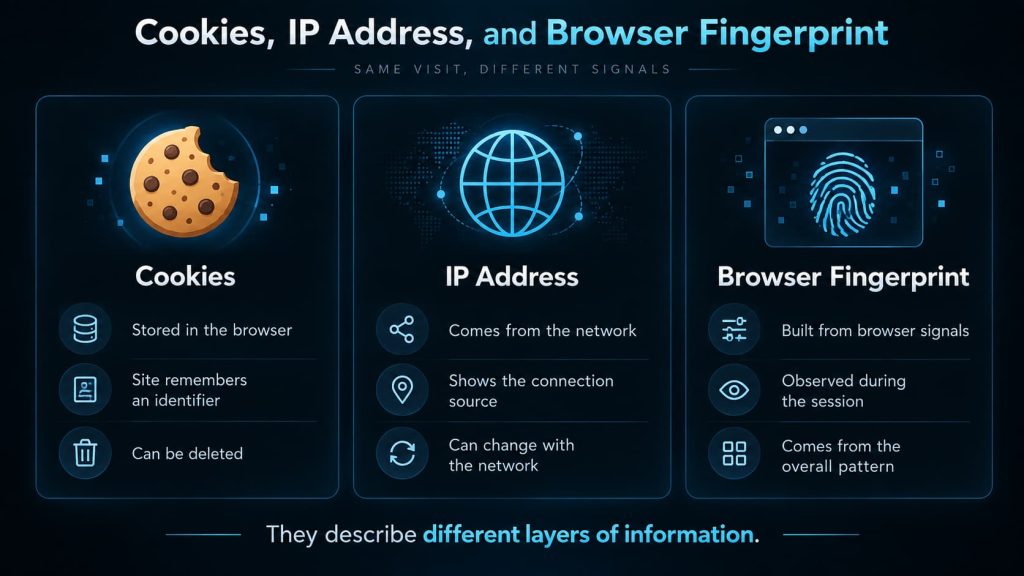
An IP address describes the network connection used to reach a website.
A browser fingerprint describes characteristics visible from the browser and its surrounding environment.
They belong to different layers.
If you change networks, your public IP address may change while most browser signals remain the same.
If you open two different browser environments through the same network, they may share an IP address while exposing different browser-side characteristics.
A website or risk system may evaluate both, but they should not be confused.
Changing the IP does not automatically create a different browser fingerprint.
Likewise, changing browser settings does not automatically change the network connection.
Does Incognito Mode Change Your Browser Fingerprint?
IIncognito mode mainly changes what the browser saves during and after a private session.
Depending on the browser, it can isolate or discard things such as:
- browsing history
- cookies
- temporary site data
- some local session information
But the website is still communicating with a browser running on a device, and many technical characteristics can still be visible.
So opening an incognito window does not automatically give the browser a completely new fingerprint.
As EFF explains in its overview of fingerprinting and private browsing, private browsing was originally designed mainly to prevent traces of visited sites from remaining on the local device, not to make the browser invisible to remote websites. Modern browsers may add additional tracking protections, so the exact behavior varies by browser.
Private browsing and browser fingerprinting therefore solve different problems:
Private browsing mainly controls local browsing state.
Fingerprinting concerns what a website can observe during the session.
Is Every Browser Fingerprint Unique?
No.
A browser fingerprint can be distinctive without being globally unique.
Thousands of people may use the same laptop model, browser version, screen resolution, and language. Some of their signals may be identical, while others divide them into smaller groups.
The more unusual the complete combination is within a particular dataset, the more distinctive it may appear.
That is why fingerprint testing sites usually talk about uniqueness or identifying information rather than presenting a browser fingerprint as a permanent global identifier.
EFF’s Cover Your Tracks, for example, compares observed browser characteristics with configurations in its own dataset to estimate how identifiable a browser may be.
A result saying that a fingerprint appears unique does not mean:
- every website sees exactly the same information
- the fingerprint will never change
- the browser can always be recognized
- the website knows who the person is
- every platform uses the same fingerprinting method
It means the observed combination stood out within the test’s measurement method and comparison population.
What Does a Browser Fingerprint Test Actually Tell You?
A fingerprint checker is useful because it lets you see the browser from the website’s side.
Depending on the checker, it may show browser information, operating system, language, timezone, screen properties, Canvas and WebGL results, fonts, media capabilities, and supported APIs.
Tools such as EFF’s Cover Your Tracks can also compare those characteristics with other observed browsers to estimate how distinctive the combination is.
These tests are useful for questions such as:
What information is my browser exposing?
Which values look unusual?
Do two browser environments expose similar values?
But they cannot reliably tell you why another platform made a particular security, trust, fraud, or account decision.
A fingerprint checker measures what that checker can observe.
It does not prove why an external platform accepted, challenged, or restricted an account.
That distinction matters: a clean-looking fingerprint report is evidence about the observable browser surface, not a universal trust score.
Browser Fingerprint, Browser Identity, and Browser Profile Are Different Things
Once you start working with persistent browser environments, three terms are easy to confuse:
fingerprint, identity, and profile.
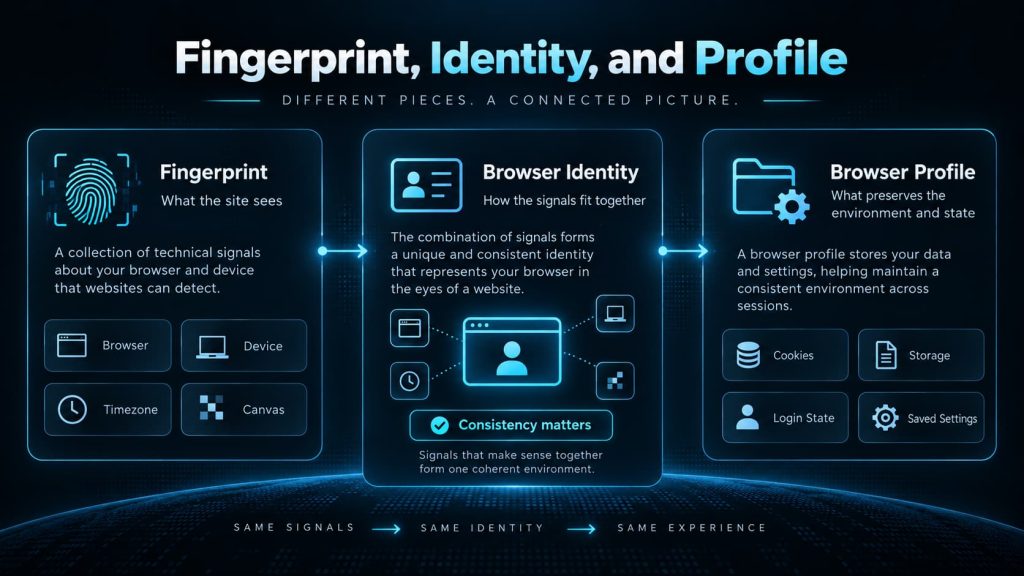
The simplest way to separate them is:
Fingerprint: what the website can observe right now.
Browser identity: a way to describe whether those observations fit together as one coherent browser and device environment.
Browser profile: the persistent environment that keeps browser state and related settings available across sessions.
Here, identity does not mean your personal identity.
It does not mean your name or account identity. It refers to the technical identity presented by the browser environment.
Consider a browser that reports:
- Windows
- Chrome
- an English language setting
- a U.S. timezone
- a particular screen configuration
- a particular graphics environment
Those values form part of what a website can observe. That is the fingerprint layer.
The next question is whether those values make sense together.
Does the claimed browser version match the features the browser actually supports?
Do the platform and graphics characteristics fit together?
Do the regional signals contradict one another?
Those are browser-identity consistency questions.
A browser profile serves a different purpose: it preserves browser state and environment settings across sessions. It can carry cookies, local storage, login state, and other saved browser context.
In browser environment tools, a profile may also preserve additional settings such as proxy or network configuration. Those capabilities depend on the tool rather than being a universal property of every browser profile.
A useful shorthand is:
Fingerprint → what the site sees
Identity → how those signals fit together
Profile → what preserves the environment and state over time
Web4 Browser uses this distinction in its browser identity and fingerprint environment model: fingerprint describes the observable surface, browser identity describes how those signals relate to one another, and the saved profile carries the environment and browser state forward.
Why More Randomization Does Not Automatically Create a Better Fingerprint
Once people understand fingerprinting, a common reaction is:
“If websites collect these values, shouldn’t I just change as many of them as possible?”
That sounds reasonable, but browser signals are connected.
A browser claiming to be a recent version of Chrome on Windows creates certain expectations.
Its supported APIs should make sense for that browser version.
Its platform signals should make sense for Windows.
Its graphics and font behavior should not obviously contradict the claimed environment.
Regional settings should also make sense within the broader environment being presented.
Changing every field independently can therefore create a fingerprint that is different without making it more coherent.
Different does not necessarily mean coherent.
EFF’s discussion of fingerprint defenses gives a useful example: if a browser claims to be Chrome while other observable characteristics still resemble Safari, that mismatch may make the browser more distinctive rather than less.
A more useful question than:
How many values did I change?
is:
Do these values make sense together as one browser environment?
This is also where Web4 Browser’s product approach becomes relevant.
Web4 Browser is designed around using AI to build, check, calibrate, and maintain a trusted browser environment. In this context, “trusted” does not mean that every website or platform will automatically trust the account.
It means the browser environment is built to be internally coherent and consistently maintained: related browser, device, rendering, regional, and runtime signals are handled as one compatibility system instead of as unrelated values that are randomized independently. Web4’s public identity model also keeps network identity separate from browser identity rather than treating an IP address or proxy as part of the browser fingerprint itself.
That boundary is important.
A coherent browser environment cannot control everything a platform may evaluate.
Proxy reputation, network routing, account history, user behavior, host-dependent characteristics, and platform policies remain separate sources of information and can independently affect how an account is treated.
How to Read a Fingerprint Report Without Getting Lost
A fingerprint checker can show dozens of fields.
You do not need to judge all of them independently.
Start with three questions.
1. What can the website actually see?
Separate the visible information into broad groups:
- browser
- device
- regional settings
- rendering
This tells you what is actually observable from the browser environment.
2. Which values describe the same environment?
Browser version and API support are related.
Operating system, fonts, graphics behavior, and platform signals may be related.
Language, timezone, and locale may also need to make sense together.
Look at the relationships, not just the individual rows.
3. Does the overall combination make sense?
This is the question that ties the report together.
Individual values tell you what a website can read.
The relationships between those values tell you what kind of browser environment the website appears to be seeing.