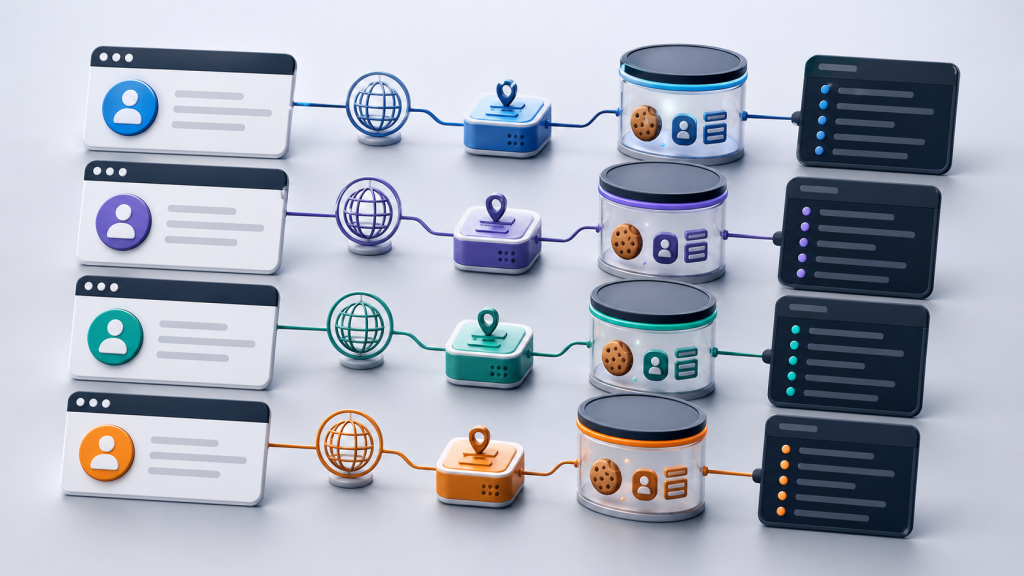
When a multi-account workflow breaks, teams often describe the problem with one loose sentence: “the session is wrong” or “the profile is broken.” That shortcut sounds harmless, but it usually hides the real failure.
A cookie, a session, and a browser profile are related, but they are not the same operational layer. If a team treats them as interchangeable, troubleshooting becomes guesswork. One person clears cookies, another changes the proxy, a third opens a copied profile, and nobody can explain which account environment the task actually used.
This article uses the keyword pair cookie vs session as the entry point, but the practical question is bigger: how should a multi-account team separate stored identity, live login state, and the browser environment that an automation task depends on?
The Short Version
A cookie is one kind of stored browser data. It may help a site remember login state, preferences, or tracking information.
A session is the active relationship between an account, a website, and a browser environment at a specific time. It can involve cookies, local storage, server-side state, redirects, device checks, and recent verification events.
A browser profile is the wider container that holds the account environment: cookies, local storage, fingerprint settings, proxy binding, timezone, language, extensions, permissions, and other context that makes the account behave consistently.
For individual browsing, the distinction may not matter every day. For multi-account operations, team handoff, and headless browser automation in multi-account workflows, it matters a lot.
Why Teams Confuse Cookies, Sessions, and Profiles
The confusion usually starts because cookies are visible and easy to blame. If a login fails, a site asks for verification, or an automation task lands on the wrong page, clearing cookies feels like a concrete action.
But many account failures are not cookie failures. A task can fail because the proxy changed after the profile was created. It can fail because the timezone no longer matches the expected account region. It can fail because a human operator completed verification in one environment while an automation task resumed in another. It can also fail because the session expired server-side even though local cookies still exist.
That is why a multi-account team needs a layered model instead of a single “clear cookies and retry” habit.
Layer 1: Cookies Are Stored Data, Not the Whole Identity
Cookies are small pieces of data a website stores in the browser. Some cookies support authentication. Others store preferences, analytics identifiers, or temporary flow state.
In multi-account work, cookies are important because they can carry account-specific traces. Mixing cookies across accounts is an obvious boundary problem. But cookie isolation alone does not guarantee that the account environment is coherent.
A profile may have the right cookies and still fail if the surrounding environment changed. For example, an account that normally works with one proxy region may trigger verification when it suddenly runs through another region. A cookie can still be present while the website decides the environment is no longer trusted.
This is why cookie checks should be treated as one part of browser profile cookie and fingerprint leak diagnosis, not as the full diagnosis.
Layer 2: A Session Is the Current Account Relationship
A session is more dynamic than a cookie. It is the state of an account being recognized, challenged, trusted, redirected, or expired during a real interaction.
A session may depend on cookies, but it can also depend on server-side rules that the browser cannot see directly. If the platform invalidates a session, the local browser may still store cookies that look valid. If the account passed a verification step five minutes ago, that recent event may influence what the next page shows. If an automation task resumes after a long pause, the session may no longer match the expected step.
For AI browser agents, this matters because the agent can only act on what the browser exposes. If the session is half-valid, the agent may keep clicking through a page that is actually waiting for human review, re-login, or environment verification.
That is why recent Web4 Browser content has emphasized checking account context before retrying a browser task that keeps asking for login. The problem is often not one button or one selector. It is the session context around the task.
Layer 3: A Browser Profile Is the Account Environment Container
A browser profile is the layer teams should use to organize account environments. It is not just a window. It is the container that keeps related context together.
In a serious multi-account workflow, a profile should make it clear which account it belongs to, which proxy or network environment it expects, which fingerprint settings it uses, what language and timezone it presents, which extensions are installed, and what recent task evidence exists around it.
This is where traditional cookie thinking becomes too narrow. If a team only asks “do we have the cookies?” it misses the bigger question: “are we running this task inside the right account environment?”
That question becomes especially important when one operator prepares the account, another reviews it, and an automation agent later performs a repetitive task. The profile is the handoff object. The session is the current state inside that object. Cookies are only one type of stored data inside the profile.
A Practical Debugging Order
When a multi-account task fails, do not start by randomly clearing data. Use a stable order.
1. Confirm the profile
Check whether the task opened the intended browser profile. Confirm the profile name, account owner, expected website, and recent usage. If the wrong profile is opened, session and cookie checks are already meaningless.
2. Confirm the environment
Check proxy binding, region, timezone, and language. If the environment changed, the account may be challenged even when cookies still exist. For proxy-related cases, the same principle appears in captcha and login risk checks after browser profile proxy changes.
3. Confirm the session state
Open the target page and record what the account actually sees. Is it logged in, logged out, challenged, redirected, or partially loaded? This is the operational session state the next task must respect.
4. Inspect stored data only after context is clear
Cookies, local storage, and cache can then be checked in context. The goal is not to delete everything. The goal is to understand whether stored data matches the expected account environment.
5. Record evidence before retrying
If automation failed, keep the URL, screenshot, step name, profile ID, proxy region, and visible account state. Without this evidence, the next retry may repeat the same mistake in a cleaner-looking but still wrong environment.
What This Means for AI Browser Automation
AI browser automation increases the cost of vague session language. A human can sometimes notice that an account is in the wrong state. An agent may continue operating until a task fails, duplicates an action, or reaches a page that needs review.
For that reason, teams should design automation boundaries around profiles and evidence, not just around scripts. Before an agent runs, the system should know which profile it is allowed to use. During the task, it should preserve enough evidence to explain what happened. After failure, a human reviewer should be able to decide whether to resume, repair, or stop.
This is the workflow layer where Web4 Browser is meant to fit: browser profiles, account context, task execution, evidence, and team handoff need to be managed together instead of treated as separate fragments.
A Simple Rule for Team Handoffs
When handing an account to another teammate or to an automation flow, do not hand over a cookie file and call it done. Hand over the account environment.
That means the receiving person should know:
- Which browser profile is the source of truth.
- Which proxy and region belong to that profile.
- Whether the account is currently logged in, challenged, or expired.
- Which recent task was completed inside the profile.
- What evidence exists if the next step fails.
This is also why browser profile management for team handoff should be tested as a workflow, not just configured as a storage setting.
Final Checklist
- If the issue is stored identity, inspect cookies and local storage.
- If the issue is current access, inspect the session state shown by the website.
- If the issue is repeatable multi-account work, inspect the full browser profile.
- If the issue appeared after a network change, check proxy, region, timezone, and language before deleting data.
- If an AI browser task failed, preserve evidence before retrying.
The useful distinction is simple: cookies are data, sessions are live account state, and browser profiles are the operational environment. Multi-account teams need all three, but they should not treat them as the same layer.