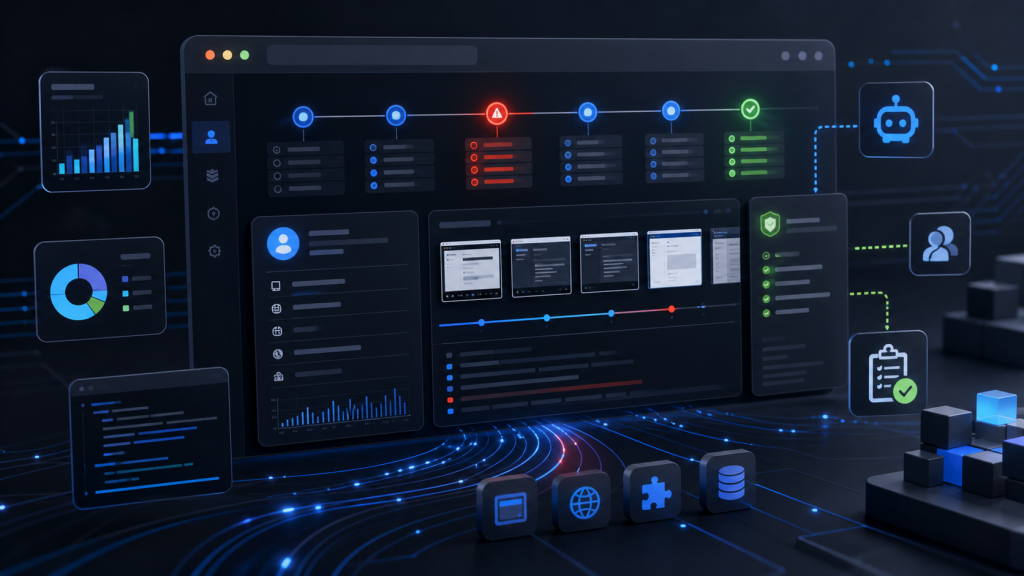
When a browser automation task fails, the first reaction is often to rerun it. That may work for a simple script. It does not work well for multi-account workflows, AI browser agents, or team operations where the task depends on a specific browser profile, session state, proxy mapping, and review rule.
A failed browser task is not only a failed click. It is a missing piece of evidence: which account context was used, what page state was visible, what step failed, what changed since the last run, and whether a human should review the result before the next action.
This guide explains what browser automation logs should capture when AI browser tasks fail, and how teams can use those logs to decide whether to retry, pause, hand off, or repair the workflow.
Why Browser Automation Logs Matter More for AI Tasks
Traditional automation logs often focus on technical errors: selector not found, timeout, navigation failed, or request blocked. Those signals are still useful, but they do not fully explain failure in account-based browser work.
An AI browser agent can make decisions across pages. It may click a fallback button, read a message, continue after a partial failure, or stop at a point that looks ambiguous. Without task evidence, the team cannot tell whether the agent failed because of the model instruction, the browser environment, the account state, or a missing review boundary.
That is why Web4 Browser treats task execution as part of a browser automation workspace, not just a place to open pages. The log should connect action, environment, account context, and review status.
What to Capture in a Browser Automation Failure Log
| Evidence field | Why it matters | Example question |
|---|---|---|
| Task name and step | Shows where the workflow failed instead of treating the whole run as broken. | Did the task fail during login, search, submit, or review? |
| Browser profile ID | Confirms which account environment was active. | Was the task running inside the intended profile? |
| Session state | Explains whether the account was logged in, expired, challenged, or redirected. | Did the page ask for login again? |
| Proxy and region context | Connects network state to account behavior. | Did the route match the profile’s expected region? |
| Current URL and page title | Shows whether the task reached the expected page. | Was the agent on the right page before acting? |
| Screenshot or DOM snapshot | Preserves the actual screen state for review. | Was a modal, captcha, or warning blocking the next step? |
| Agent instruction and decision | Separates instruction design from environment failure. | Did the agent choose an allowed next action? |
| Stop reason | Prevents unsafe automatic retries. | Should the workflow retry, pause, or request review? |
This evidence table turns a vague failure into a reviewable event. It also gives teams a common language for debugging browser tasks across operators, developers, and reviewers.
Step 1: Record the Account Context First
Many automation failures are diagnosed from the wrong layer. Teams inspect the prompt, selector, or API call before confirming whether the task was running inside the right account environment.
Start with account context. The log should identify the browser profile, profile owner, account label, proxy assignment, region expectation, and session state. If those fields are missing, the team cannot prove whether the task failed in the workflow or in the environment underneath it.
For teams still defining this boundary, the checklist in account context for browser automation is a useful supporting reference.
Step 2: Capture the Page State Before Recovery
Recovery can erase evidence. A reload may clear a modal. A retry may change the URL. A fresh session may hide the login state that caused the failure.
Before recovery, capture the visible page state: current URL, page title, screenshot, key error text, selected tab, and whether the page is still inside the expected profile. For headless workflows, this means saving screenshots and navigation events in a way reviewers can inspect later.
If your workflow runs in headless mode, pair the log with headless automation evidence so failures do not become invisible once the browser window is removed.
Step 3: Separate Script Errors From Browser Environment Errors
Not every browser automation failure is a code problem. The same selector can fail because the account is logged out, the profile loaded the wrong locale, a proxy changed the page version, or a review prompt blocked the task.
A useful log separates four layers:
- Instruction layer: what the agent or script was asked to do.
- Browser layer: tab, URL, DOM, screenshot, and navigation state.
- Account layer: profile, session, local storage, cookies, and login status.
- Network layer: proxy, region, IP context, and route consistency.
This is also why teams using repeatable MCP workflows need to preserve connection, tab, profile, and execution state. The related guide on Browser MCP workflow troubleshooting covers that path in more detail.
Step 4: Define Retry, Pause, and Human Review Rules
A log is only useful if it changes the next decision. Teams should define what kind of failure can retry automatically, what must pause, and what needs human review.
| Failure signal | Recommended action | Reason |
|---|---|---|
| Temporary selector timeout on a known safe page | Retry once with evidence preserved. | The page may be slow, but repeated retries can hide a real state issue. |
| Unexpected login prompt | Pause and inspect profile/session state. | The account context may no longer match the task. |
| Region, proxy, or locale mismatch | Stop and repair the environment mapping. | The task may be running in the wrong account context. |
| Ambiguous confirmation or transaction step | Require human review. | The next action may have account or business impact. |
| Repeated failure after recovery | Open a workflow review ticket. | The task design, environment, or instruction may need revision. |
For AI-driven tasks, review rules should be explicit. The article on human review before AI browser agents explains how to place review boundaries before a task touches live account work.
Step 5: Use Logs for Team Handoff, Not Just Debugging
Browser automation logs are not only for developers. In multi-account teams, they also support handoff. A reviewer needs to know what happened. A teammate needs to know what can be retried. A manager needs to know whether the workflow is stable enough to scale.
A handoff-ready log should answer these questions:
- Which profile and account did the task use?
- What step completed successfully before the failure?
- What did the browser show at the stop point?
- Was the session still valid?
- Was the proxy and region context expected?
- What is the approved next action?
If your team already uses browser profiles but handoffs are still inconsistent, compare the log fields with a browser profile handoff test. The gap is often not profile creation; it is missing evidence around ownership, session state, and recovery rules.
Browser Automation Failure Log Checklist
- Record task name, step name, run time, and operator or automation source.
- Record browser profile, account label, profile owner, and expected account context.
- Record proxy, region, timezone, language, and any session assumptions.
- Save current URL, page title, screenshot, and relevant page message before recovery.
- Separate instruction failure, page-state failure, account-state failure, and network-state failure.
- Define whether the task should retry, pause, request review, or open a workflow repair ticket.
- Keep the log attached to the profile or workspace so the next teammate can continue with context.
Web4 Browser fits this problem because it connects browser profiles, proxy context, AI browser tasks, Skills and MCP workflows, headless automation, and team review inside one operating workspace. The goal is not to make every failure disappear. The goal is to make every failure reviewable enough that the next action is controlled.
If a team cannot explain why a browser automation task failed, it should not scale that task yet. Start by improving the evidence trail. Once logs connect the task, account context, browser state, and review rule, automation becomes easier to debug, safer to hand off, and more realistic to expand.