
Before you rewrite the prompt, change the script, or blame the agent, make sure the task is running inside the right browser Profile, with the right Cookie, Session, proxy, and review rules.
An AI browser task can look broken even when the agent is following your instruction correctly.
It opens the right website. It clicks the right button. It starts the right workflow. Then it suddenly asks you to log in again, lands in the wrong account, or cannot continue because the page state is different from yesterday.
Many teams blame the AI Agent, the prompt, or the automation script first. But in multi-account work, the more common problem is simpler: the task is not running inside the right account context.
One-sentence conclusion: a browser automation task does not only need a URL and an instruction. It needs the right browser Profile, Cookie, Session, proxy mapping, task history, and review rule around the account.
The visible problem: the task opens the page but loses the account
The first sign is usually not a technical error.
It looks like this:
- The AI browser task opens the target website, but asks for login again.
- The page loads, but the account is not the one you expected.
- The task worked yesterday, but today starts from a fresh state.
- A teammate runs the same task, but sees a different dashboard.
- A headless task fails because a login prompt, verification step, or expired session appears.
From the user’s point of view, the task “failed.”
But the browser may have done exactly what it was told to do. It opened the website. What it did not have was the same account environment that a human operator used before.
This matters because logged-in browser work is not just about opening a URL. It depends on the browser space where that account lives.
Where this happens in real team workflows
This problem often appears when a team moves from manual browsing to AI-assisted browser automation.
For example:
- A social media team wants an AI browser agent to check account status every morning.
- An advertising team wants to inspect multiple client dashboards.
- An e-commerce team wants to review store alerts across regions.
- A QA team wants to reuse logged-in states across repeated tests.
- A data research team wants background checks to run in headless mode.
At first, the task looks simple: open this page, check this field, record the result.
But each account may need its own browser Profile. One account may use a specific proxy region. Another may have a different language setting, stored Cookie, extension state, or local storage. One teammate may have logged in last week from a different Profile. Another may not know which environment is the official one.
That is when the task starts to break.
The issue is not always “AI automation is unreliable.” The issue may be that the account context was never made clear enough for automation.
In plain language, the browser has no memory of the right account
Think of a browser Profile as an account’s working room.
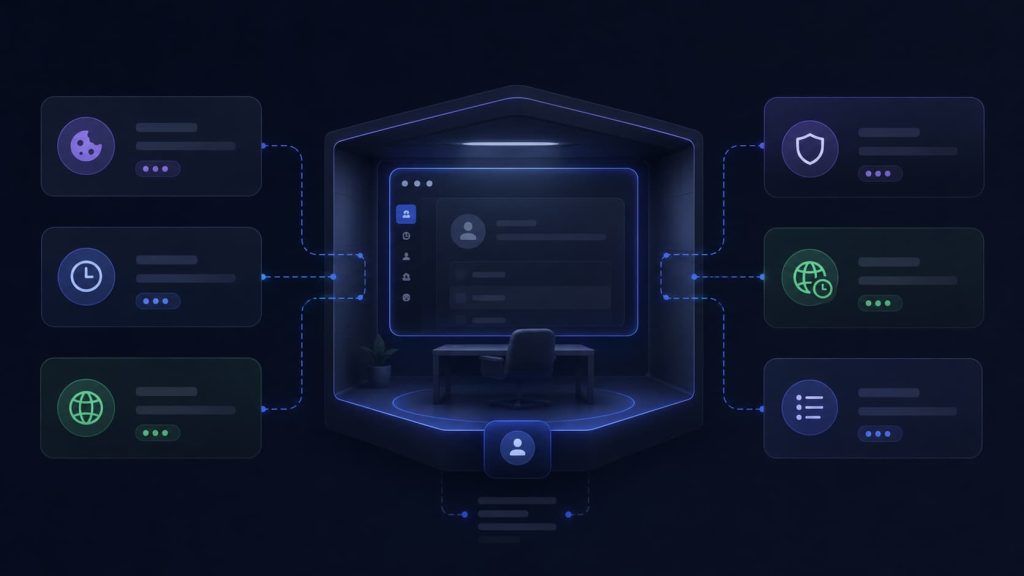
A Profile is not just a browser window. It can store Cookies, local storage, login state, language, timezone, proxy settings, extensions, and other browser data related to that account.
A Cookie is a small record a website uses to remember parts of your visit, including login state and preferences.
A Session is the current state of a login or visit. When a session expires, changes, or belongs to another environment, the site may ask you to log in again.
A proxy decides which network exit the browser uses. But proxy is only one part of the account environment. The browser’s Profile, Cookie, Session, timezone, language, and task behavior also need to tell the same story.
So when an AI browser task keeps asking for login, the practical question is not only:
“Why did the agent fail?”
A better question is:
“Did this task run inside the same account environment where the account is already known, logged in, and ready for this workflow?”
That is the difference between opening a website and continuing an account task.
The technical layer: Profile, Cookie, Session, proxy, and agent context
Now we can introduce the technical layer, but only after the user problem is clear.
Profile: the account’s browser home
A browser Profile can be understood as a dedicated browser space for one account or one account group. For multi-account teams, it is usually better to create a dedicated browser Profile for each account instead of sharing one browser environment across different accounts.
This includes Cookies, local storage, browser settings, extensions, and sometimes proxy-related configuration.
What this means for you: if the AI task starts in a fresh browser, a temporary context, or another teammate’s environment, it may not see the same login state.
Cookie: the website’s memory of this browser
Cookies help websites remember login status, preferences, and parts of the user journey.
If Cookies are missing, expired, cleared, copied incorrectly, or mixed with another account’s data, the task may be asked to log in again.
What this means for you: copying a password or URL is not the same as copying the full account environment.
Session: the current logged-in state
A Session is the active state of a login or browsing process.
Even if a Cookie exists, the Session may be invalid, expired, or changed by a security step. If a task depends on a Session that is no longer valid, the agent may reach a login screen instead of the dashboard.
What this means for you: the task may need a pre-check before it starts, not a bigger prompt after it fails.
Proxy: the network route for the account
A proxy decides the network exit used by the browser.
In a multi-account workflow, each account often needs a stable Profile-to-proxy mapping. Teams should also keep proxy and Profile settings aligned so the browser environment and network route tell the same story.
What this means for you: do not check login state alone. Check whether the Profile and proxy still match the intended account plan.
AI Browser Agent: the task executor, not the account owner
An AI Browser Agent is a browser assistant that can open pages, read status, click buttons, fill fields, and record results.
But the agent should not be treated as the owner of the account environment. It executes inside the environment you give it.
What this means for you: if the environment is wrong, the agent can follow the instruction and still produce the wrong result.
Check in this order before rewriting the automation
Before changing the prompt, rewriting the script, or switching tools, run this check sequence.
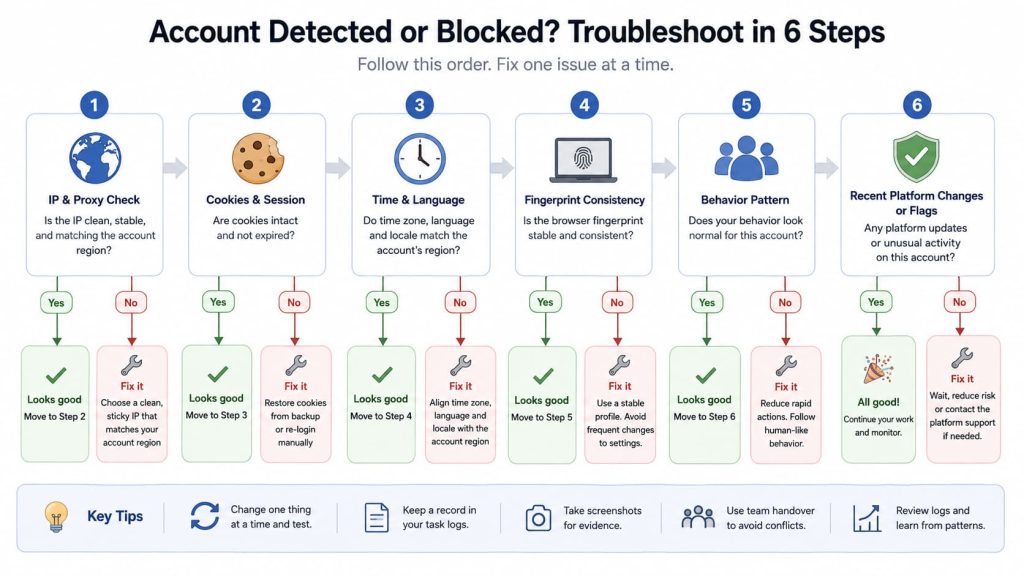
Check 1: Is the task using the intended Profile?
Start with the browser Profile.
Ask:
- Which Profile should this account use?
- Is the AI task launched from that Profile?
- Did another teammate create a duplicate Profile?
- Is the task using a temporary browser context?
- Was the Profile recently reset, moved, or rebuilt?
If the task is not using the intended Profile, fix that first.
Do not tune the prompt while the task is running in the wrong account room.
Check 2: Does the Profile still contain the expected login state?
Open the Profile manually first.
Check:
- Is the account already logged in?
- Does the dashboard load without a login prompt?
- Does the page show the expected account, project, store, client, or workspace?
- Has the site recently asked for re-authentication?
- Did someone clear Cookies or local storage?
If manual opening already asks for login, the automation is not the first problem. The account environment itself needs attention.
Check 3: Is the Session still valid for this workflow?
A Session can expire even when the Profile still exists.
Check:
- Does the account require re-login after a certain time?
- Does it require MFA, security review, or device confirmation?
- Does the task depend on a Session that only one operator completed?
- Does the task start after the Session has already expired?
For high-risk steps such as payment, account security settings, formal publishing, bulk messaging, CAPTCHA, or sensitive permission changes, the task should stop and ask for human confirmation.
AI browser automation is best used for low-risk, repeatable, verifiable browser tasks. It should not silently continue through sensitive account steps.
Check 4: Does the proxy still match the account environment?
Do not only check whether the proxy works.
Check whether the proxy still matches this account’s expected environment:
- Is this Profile bound to the intended proxy?
- Is the proxy region consistent with the account plan?
- Did a teammate switch proxy settings outside the Profile?
- Does the browser timezone and language still fit the route?
- Did a rotating proxy change during a task that expected stability?
If the network route changed, the site may treat the same browser as a different context.
Check 5: Is the task reading the right page state before acting?
A reliable task should not assume the page is ready.
Before clicking or entering data, it should check:
- Is the user logged in?
- Is the account name or workspace correct?
- Is there a verification prompt?
- Is there a banner, modal, or expired session warning?
- Is the target button or field actually visible?
- Should this step continue, pause, or ask for review?
This is where browser automation becomes operationally useful. The task should not only act. It should inspect the page state and decide whether the next action is safe.
Check 6: Can the team see what happened last time?
If no one can see the last task result, the next run becomes guesswork.
A team should know:
- Who last opened the account?
- Which Profile was used?
- Which proxy was active?
- What task was run?
- Did it finish, fail, or stop for review?
- Were screenshots or logs saved?
- What should the next operator do?
Without this history, every login problem becomes a fresh investigation.
What to do today: a 10-minute account context check
Pick one important account and run this quick check.
| Check | What to confirm |
|---|---|
| Profile | The account has one intended browser Profile. |
| Cookie | The Profile still loads the expected logged-in state. |
| Session | The current Session is valid for the task. |
| Proxy | The Profile uses the expected proxy route and region. |
| Ownership | The team knows who owns this account environment. |
| Logs | The last task result and failure point are visible. |
| Review | The task stops before sensitive or high-risk actions. |
If this one account is unclear, do not scale the automation yet.
A broken process across one account becomes a bigger problem across twenty accounts.
Common mistakes
Mistake 1: “The page opens, so the task context is correct”
Opening a URL is not the same as opening the right account state.
The task must confirm login state, account identity, workspace, and page readiness before acting.
Mistake 2: “The agent asks for login, so the prompt is bad”
Sometimes the prompt is fine.
The task may be missing the right Profile, Cookie, Session, or persistent browser state.
Mistake 3: “Copying Cookies is enough”
Cookies are important, but they are not the whole environment.
Profile, local storage, extensions, proxy, timezone, language, task history, and review rules may also matter.
Mistake 4: “Headless mode can run everything”
Headless mode is useful for repeated checks, scheduled tasks, and background inspection.
But when a task reaches login problems, verification prompts, account security settings, payment steps, formal publishing, or sensitive permission changes, it should pause for human review.
Mistake 5: “A shared password is enough for team handoff”
A password does not tell the next operator which Profile to use, which proxy should be active, what happened last time, or whether the account recently hit an exception.
For team workflows, account handoff should include environment, ownership, task history, and review status.
How Web4 helps teams keep account context, tasks, and review logs together
Web4 Browser is designed for teams that need more than a browser window.
Instead of treating Profile, proxy, Cookie, AI Agent, Skills, headless tasks, and logs as separate pieces, Web4 helps teams keep them in one multi-account browser workspace.
A team can create a dedicated browser Profile for each account, keep proxy and Profile settings aligned, and turn repeated browser checks into AI-assisted tasks when the workflow is low-risk, repeatable, and easy to verify.
When a task runs, the team can keep task results and review notes in one workflow, so exceptions, screenshots, and next-step decisions stay close to the account environment.
This does not mean every browser action should be automated.
A better approach is to separate tasks into three groups:
| Task type | Recommended handling |
|---|---|
| Low-risk repeated checks | Suitable for AI-assisted or headless execution |
| Tasks with changing page state | Run with visible browser and review checkpoints |
| Sensitive account actions | Keep human confirmation before continuing |
This makes AI browser automation easier to trust.
The agent does not need to guess which account context is correct. The team defines the Profile, proxy, task scope, stop signals, and review rules before the task runs.
Next step
Do not start by rewriting the whole automation.
Start with one account.
Confirm its Profile, login state, Session validity, proxy route, owner, last task log, and review rule. Then let another team member open the same account environment and continue the task.
If they cannot tell which Profile to use, what happened last time, and when the task should stop for review, the problem is not only automation. The account context is not ready for team execution.
For teams managing many accounts, the more stable path is to keep each account’s Profile, proxy, Cookie, task record, and review status inside one browser workspace. That gives AI browser tasks a clearer environment to run in, and gives humans a clearer way to inspect, pause, and continue the work.