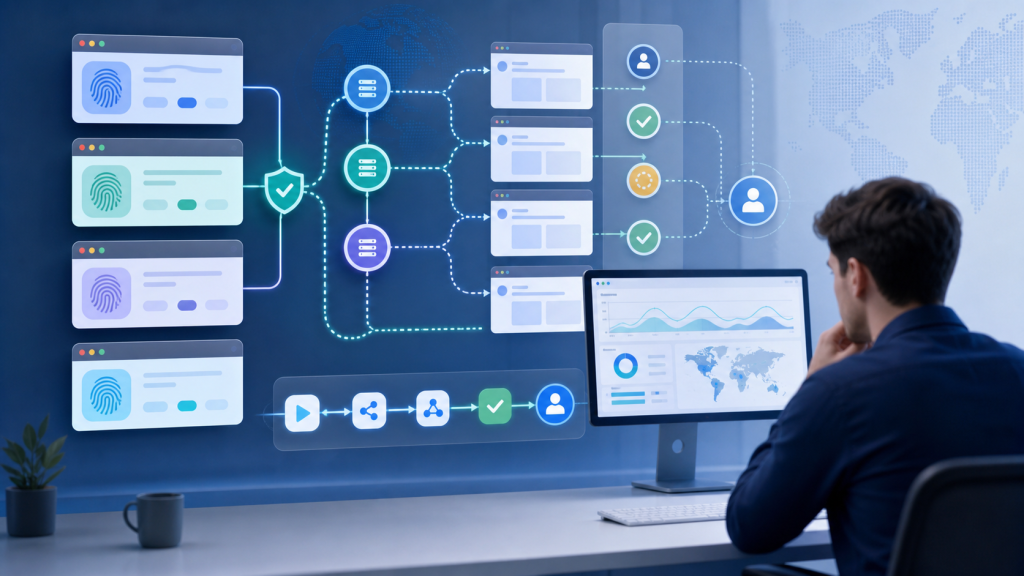
If you search for the best fingerprint browser for Selenium, the practical question is not only whether a browser can be launched by WebDriver. The better question is whether your Selenium run can start from the right browser profile, use the intended proxy route, keep the expected session state, and leave enough evidence for a teammate to review the result.
Use this article as a selection checklist. It focuses on the fields a team should verify before connecting Selenium to a fingerprint browser: profile isolation, proxy behavior, login state, browser fingerprint consistency, automation handoff, and stop conditions. It keeps the scope to authorized automation planning, operational checks, and review boundaries.
Quick answer: what the best fingerprint browser for Selenium should support
The best fingerprint browser for Selenium should let your team run browser automation from a controlled account environment, not from a disposable browser window. Before choosing a tool, check whether it can keep these five things together:
- Browser profile identity: each account should have its own profile, local storage, fingerprint settings, notes, owner, and purpose.
- Proxy route: the profile should use the intended proxy type, authentication method, region assumption, and connection status before Selenium starts.
- Session state: the run should begin from a known login or review state, not from a guessed page condition.
- Automation boundary: Selenium should have clear allowed actions, pause rules, retry limits, and human review points.
- Execution evidence: the system should preserve URLs, screenshots, logs, profile ID, proxy result, and handoff notes when something changes.
If a browser only says it supports Selenium but cannot connect that run to a stable profile, proxy, and session record, it may still be useful for simple tests. For account-based workflows, it is not enough.
Selection table for Selenium automation
| Selection question | Weak answer | Stronger answer |
|---|---|---|
| How does Selenium connect? | It opens a browser through a driver. | It attaches to a named browser profile with a known owner, purpose, and account context. |
| How is the proxy checked? | The proxy field is filled in. | The profile records proxy protocol, host, port, authentication, outbound IP result, and region expectation. |
| How is session state handled? | The script checks whether a login button exists. | The profile has a known session state, a pre-run check, and a stop rule when the page asks for verification or review. |
| How are fingerprint settings managed? | The browser changes common fingerprint fields. | The team can review timezone, language, WebRTC, canvas/WebGL assumptions, and profile consistency before the run. |
| What happens after failure? | The script retries. | The run records evidence, classifies the failure, and pauses when account context or proxy assumptions are unclear. |
Check 1: Selenium should attach to a named browser profile
A Selenium-friendly fingerprint browser should not treat each run as a fresh, anonymous window. For multi-account work, the browser profile is the unit that carries account context. It should preserve browser storage, fingerprint settings, proxy mapping, ownership notes, and task history in a way your team can review.
Before you run automation, record the profile ID, account owner, intended platform, proxy route, expected region, and allowed task. The fingerprint environment layer is where this account context begins. Selenium should operate inside that layer instead of creating a new environment each time.
Check 2: proxy routing needs a real pre-run check
For Selenium workflows, proxy support should mean more than a proxy input field. The team should be able to confirm the proxy type, address, port, authentication status, and expected outbound location before automation starts. If the proxy is rotating or sticky, the run record should say what behavior is expected.
A practical pre-run check should record the observed outbound IP, whether IPv4 and IPv6 behave as expected, whether DNS results expose an unexpected local resolver, and whether WebRTC shows a conflicting public address. For teams that maintain account-to-proxy mapping, this proxy mapping checklist is a useful related control.
Check 3: session state should be known before Selenium clicks
Many Selenium failures are not caused by selectors. The script may be correct, but the account may be logged out, on a different step, blocked by a review prompt, or loaded in the wrong browser profile. A fingerprint browser for Selenium should make session state visible before the script starts.
The simplest rule is to define a start state and a stop state. A start state might be “account is logged in and dashboard page loads.” A stop state might be “verification prompt, unexpected account switch, password challenge, region mismatch, or missing permission.” The persistent browser context checks are relevant when the same account environment is reused across repeated browser tasks.
Check 4: fingerprint settings should be reviewable, not magical
A good Selenium setup should let the team review fingerprint assumptions instead of hiding them behind vague claims. Useful fields include user agent, operating system assumption, timezone, language, screen size, WebRTC behavior, canvas/WebGL handling, fonts, and local storage boundaries.
The goal is consistency, not impossible invisibility. The browser should help operators keep the profile, proxy, timezone, and task region aligned. If a field changes, the run record should show what changed and who approved it.
Check 5: automation boundaries matter more than raw speed
Selenium can execute actions quickly, but speed is not the main selection criterion for account-based browser work. A better fingerprint browser should help the team define what the script is allowed to do, when it should retry, when it should pause, and when a human should review the page.
This is where Web4 Browser is different from a simple launch wrapper. It is designed as an AI browser workflow workspace where browser profiles, proxy settings, account context, task execution, and review evidence can stay connected. For Selenium teams, that means the browser layer can become part of the operational record instead of a hidden dependency.
Selenium-ready profile checklist
| Field | What to record | Pass condition |
|---|---|---|
| Profile ID | Profile name, owner, account purpose, platform | The run starts from the intended profile, not a fresh browser. |
| Proxy | Protocol, host, port, auth status, outbound IP, expected region | The observed route matches the profile’s intended route or documented rotation rule. |
| Session | Login state, start URL, account identity, review prompts | The account is in the expected state before Selenium actions begin. |
| Fingerprint | Timezone, language, WebRTC, canvas/WebGL assumptions | Fields are consistent with the profile and task expectation. |
| Task boundary | Allowed actions, retry count, stop conditions | The script pauses when account context, permission, or route is unclear. |
| Evidence | URLs, screenshots, logs, profile ID, proxy result, handoff note | A teammate can understand what happened without rerunning the task. |
Where Web4 Browser fits in a Selenium workflow
Web4 Browser is most useful when Selenium is part of a larger multi-account workflow. The automation script handles browser actions; the workspace should preserve the account environment, proxy route, session context, and task record around those actions.
For teams moving beyond isolated scripts, an AI browser workflow workspace can connect the browser profile to task execution and human review. Related reading on automation log fields and proxy checks for browser automation can help teams decide what to record before scaling repeated tasks.
Final decision rule
Choose a fingerprint browser for Selenium only after you can answer this question: if a run fails tomorrow, can another teammate see which profile, proxy, session state, page, and task rule were involved? If the answer is yes, the browser is supporting automation operations. If the answer is no, Selenium may still run, but the team is missing the context layer that makes repeated account work reviewable.